










Make a Spotify keychain with your song: here's how it works

Some songs bring back a memory instantly: your first dance, the song from that one road trip, your little one's lullaby. With a Spotify keychain you always carry that song with you. Scan the code with your phone and the song starts playing. Below you can read how a keychain with a song works and how to make one yourself.
What is a Spotify code?
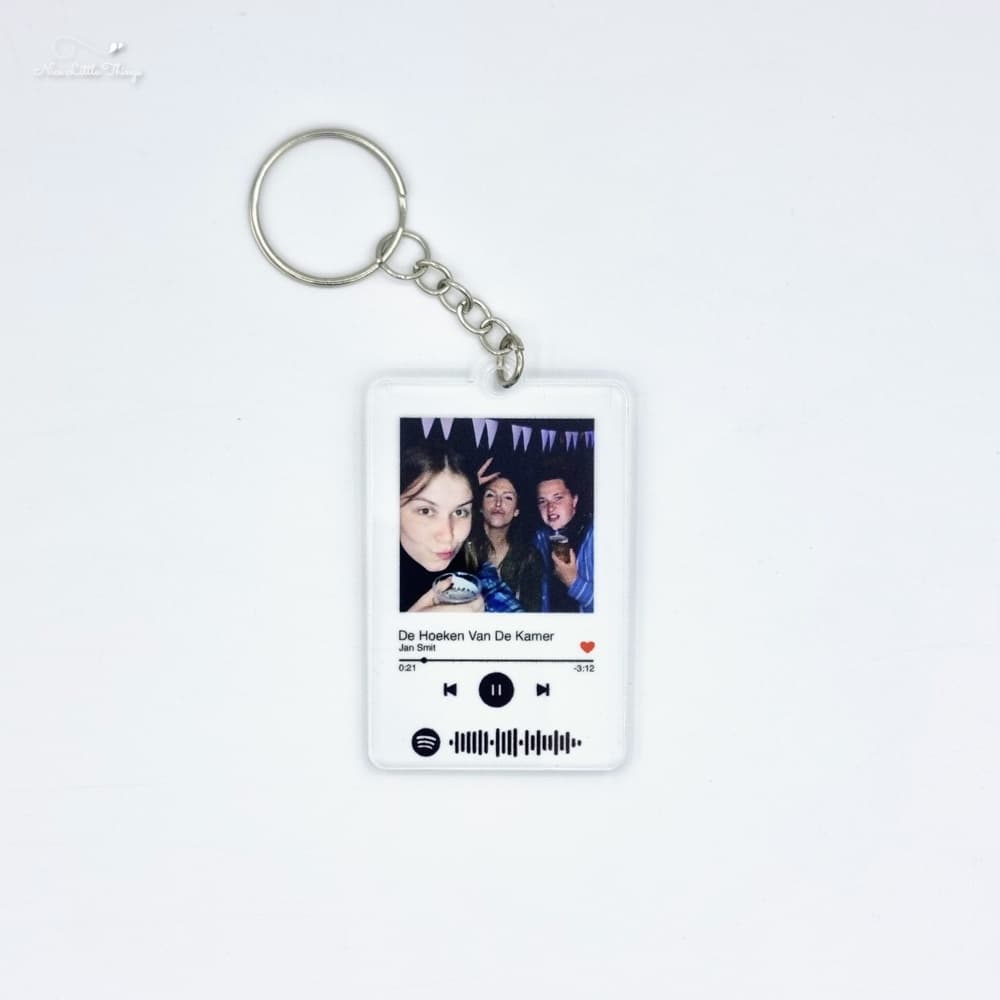
A Spotify code is a kind of barcode made by Spotify itself: a row of bars of different lengths next to the Spotify logo. Every song, album and playlist on Spotify has one. Scan the code with the Spotify app and the right song opens immediately. A Spotify code keychain has that code at the bottom, together with a photo of your choice.
Make a Spotify keychain in 4 steps
1. Choose your song and copy the link
Look up the song in the Spotify app or on your computer. Tap the three dots next to the song, choose Share and then Copy link. When personalising, you paste that link into the "Spotify song URL" field. We turn it into the right Spotify code, so you don't have to generate anything yourself.
2. Choose a photo
A keychain is small, so choose a photo that also works at a small size. A few tips: make sure faces are large enough in the frame, choose a sharp, well-lit photo and avoid busy backgrounds. A photo of the two of you, of the kids or of a place that means a lot: anything goes.
3. Personalise and order
Go to the personalised Spotify keychain, upload your photo, paste your song's link and add a text if you like. We then make your keychain by hand in our workshop in Geetbets, Belgium.
4. Scan and listen
Open the Spotify app and tap Search. Then tap the camera icon in the search bar and point your camera at the code at the bottom of the keychain. The song opens immediately. Tip: scan in good light and hold your phone straight above the code.
Music and memories as a gift
Which song should you choose? Ideas for every occasion
For your partner. Your first dance, the song from your first date or the one that is always on in the car. A perfect gift for Valentine's Day, an anniversary or your wedding day.
For your best friend. The song you belt out together at every party, with a photo of the two of you. Also check out our other friendship gifts.
For mum, dad, grandma or grandpa. A song from their youth or their wedding, with a photo of the (grand)children. Always a hit for Mother's Day, Father's Day or a birthday.
As a Christmas gift. Small, personal and a perfect fit for a Christmas stocking or next to a plate on the Christmas table. Find more ideas among our Christmas gifts.
As a keepsake. Of a trip, a concert or someone who is no longer with us. A keychain with a song keeps that memory close.
Prefer something bigger? The Spotify lamp
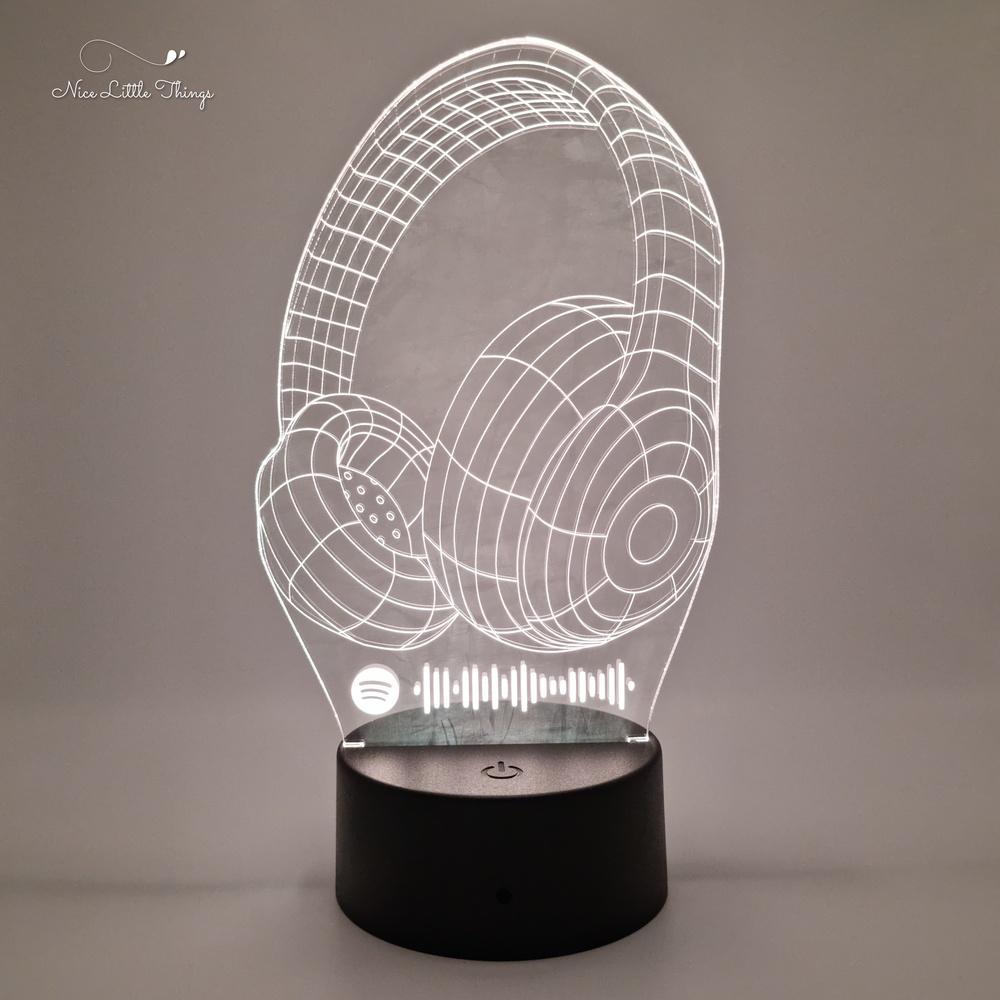
Want to see the song at home as well as carry it with you? The personalised LED lamp with a Spotify code is made of acrylic and can light up in different colours. You choose the colour with the touch button or the included remote control. The lamp works with a USB cable (included) or on batteries.
Ready to always carry your song with you? Make your own Spotify keychain or browse all our personalised keychains.
Frequently asked questions
Do I need Spotify Premium to scan the code?
No. You scan the code with the regular Spotify app, even without a Premium subscription.
Can I choose a playlist or album instead?
Spotify creates codes for songs, albums and playlists. Would you rather have a playlist with all your favourites instead of a single song? Let us know and we will look at the options together.
Will the code still work if the song disappears from Spotify?
The code points to the song on Spotify. If an artist removes a song, the code can no longer play it. So preferably choose the official version of a song, not a cover or a temporary upload.
How do I copy a song's link on my computer?
In Spotify, right-click the song (or click the three dots), choose Share and then Copy Song Link. Paste that link into the personalisation field.